

Why Evaluations Matter
- Performance Optimization: Identify which models and settings work best for your specific automation tasks
- Cost Control: Track token usage and inference time to optimize spending
- Reliability: Measure success rates and identify failure patterns
- Model Selection: Compare different LLMs on real-world tasks to make informed decisions
Live Model Comparisons
View real-time performance comparisons across different LLMs on the Stagehand Evals Dashboard
Comprehensive Evaluations
Evaluations help you systematically test and improve your automation workflows. Stagehand provides both built-in evaluations and tools to create your own.Evals CLI
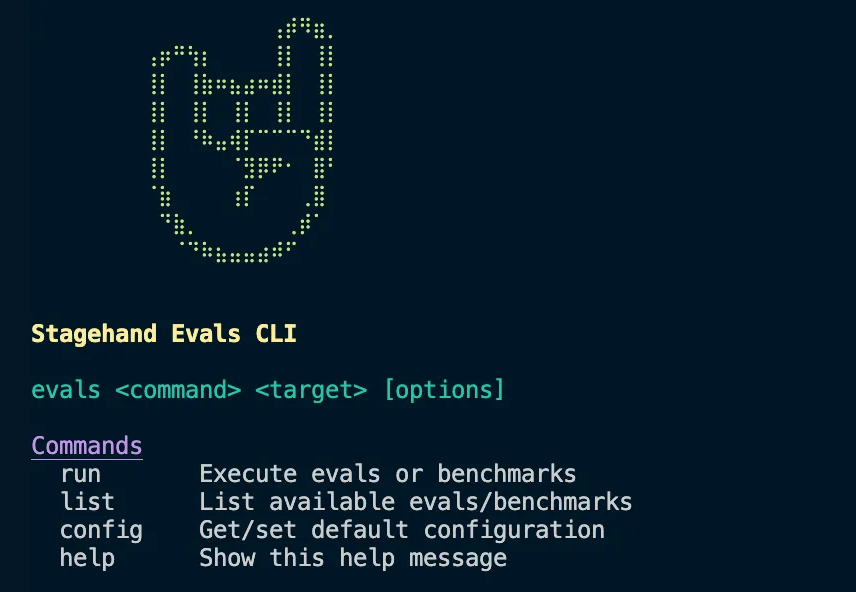
- Act Evals - These are evals that test the functionality of the
actmethod. - Extract Evals - These are evals that test the functionality of the
extractmethod. - Observe Evals - These are evals that test the functionality of the
observemethod. - Combination Evals - These are evals that test the functionality of the
act,extract, andobservemethods together. - Experimental Evals - These are experimental custom evals that test the functionality of the stagehand primitives.
- Agent Evals - These are evals that test the functionality of
agent. - (NEW) External Benchmarks - Run external benchmarks like WebBench, GAIA, WebVoyager, OnlineMind2Web, and OSWorld.
Installation
1
Install Dependencies
2
Build the CLI
3
Verify Installation
CLI Commands and Options
Basic Commands
Command Options
-e, --env: Environment (localorbrowserbase)-t, --trials: Number of trials per eval (default: 3)-c, --concurrency: Max parallel sessions (default: 10)-m, --model: Model override-p, --provider: Provider override--api: Use Stagehand API instead of SDK
Running External Benchmarks
The CLI supports several industry-standard benchmarks:Configuration Files
You can view the specific evals inevals/tasks. Each eval is grouped into eval categories based on evals/evals.config.json.
Viewing eval results
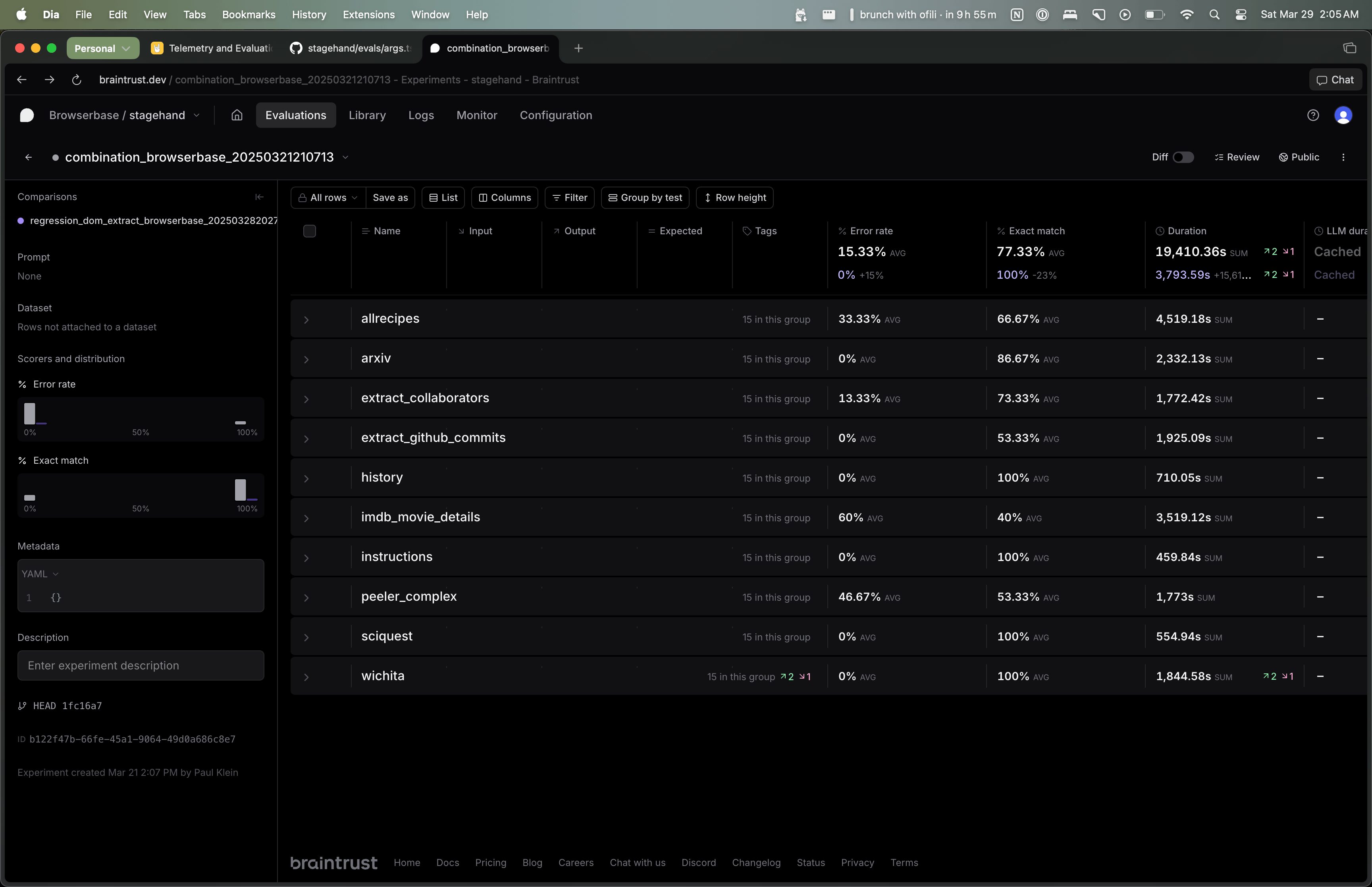
npm run evals.
By default, each eval will run five times per model. The “Exact Match” column shows the percentage of times the eval was correct. The “Error Rate” column shows the percentage of times the eval errored out.
You can use the Braintrust UI to filter by model/eval and aggregate results across all evals.
Creating Custom Evaluations
Step-by-Step Guide
1
Create Evaluation File
Create a new file in
evals/tasks/your-eval.ts:2
Add to Configuration
Update
evals/evals.config.json:3
Run Your Evaluation
Best Practices for Custom Evals
Test Design Principles
Test Design Principles
- Atomic: Each test should validate one specific capability
- Deterministic: Tests should produce consistent, measurable results
- Realistic: Use real-world scenarios and websites
- Measurable: Define clear success/failure criteria
Performance Optimization
Performance Optimization
- Parallel Execution: Design tests to run independently
- Resource Management: Clean up after each test
- Timeout Handling: Set appropriate timeouts for operations
- Error Recovery: Handle failures gracefully
Data Quality
Data Quality
- Ground Truth: Establish reliable expected outcomes
- Edge Cases: Test boundary conditions and error scenarios
- Statistical Significance: Run multiple iterations for reliability
- Version Control: Track changes to test cases over time
Troubleshooting Evaluations
Evaluation Timeouts
Evaluation Timeouts
Symptoms: Tests fail with timeout errorsSolutions:
- Increase timeout in
taskConfig.ts - Use faster models (Gemini 2.5 Flash, Claude Haiku 4.5)
- Optimize test scenarios to be less complex
- Check network connectivity to LLM providers
Inconsistent Results
Inconsistent Results
Symptoms: Same test passes/fails randomlySolutions:
- Set temperature to 0 for deterministic outputs
- Increase repetitions for statistical significance
- Use more capable models for complex tasks
- Check for dynamic website content affecting tests
High Evaluation Costs
High Evaluation Costs
Symptoms: Token usage exceeding budgetSolutions:
- Use cost-effective models (Gemini 2.5 Flash, Claude Haiku 4.5)
- Reduce repetitions for initial testing
- Focus on specific evaluation categories
- Use local browser environment to reduce Browserbase costs
Braintrust Integration Issues
Braintrust Integration Issues
Symptoms: Results not uploading to dashboardSolutions:
- Check Braintrust API key configuration
- Verify internet connectivity
- Update Braintrust SDK to latest version
- Check project permissions in Braintrust dashboard